
Slide studio · guide
How to edit and translate the slides
The Week of Prayer slides and the other projects are ready in Portuguese, Spanish and English. With a free account, your church opens a copy, changes what it needs and translates it into your language.
What you can do
- View and presentOpen the slides in the browser, full screen. No account needed.
- DownloadPDF, or Keynote / PowerPoint (.pptx) to present from your computer. No account needed.
- AdaptChange the church name, the date, a sentence. Needs a free account.
- TranslateInto French, Italian, Romanian, Russian, Ukrainian and the other studio languages, and send it to the team to publish on the site. Needs a free account.
Step by step
- Step 1
Create your free account
To change the slides you need an account on the site. It takes a minute and asks for no ID.Create a free account- Enter your name, e-mail, WhatsApp and a password.
- If you already have an account on the site or in the Conectados app, it is the same one: just sign in.
- Once it is created, you go straight back to the slide studio.
- Step 2
Open the talk in the studio
On the project page, every talk has the “Edit or translate” button. Pick the card's language first (PT, ES or EN) — the copy opens in that language.See the Week of Prayer- The studio opens YOUR COPY. The General Conference original does not change.
- The copy is kept in “My presentations”, in the studio gallery.
- To start from scratch, the gallery also has “New blank one” and the other templates.
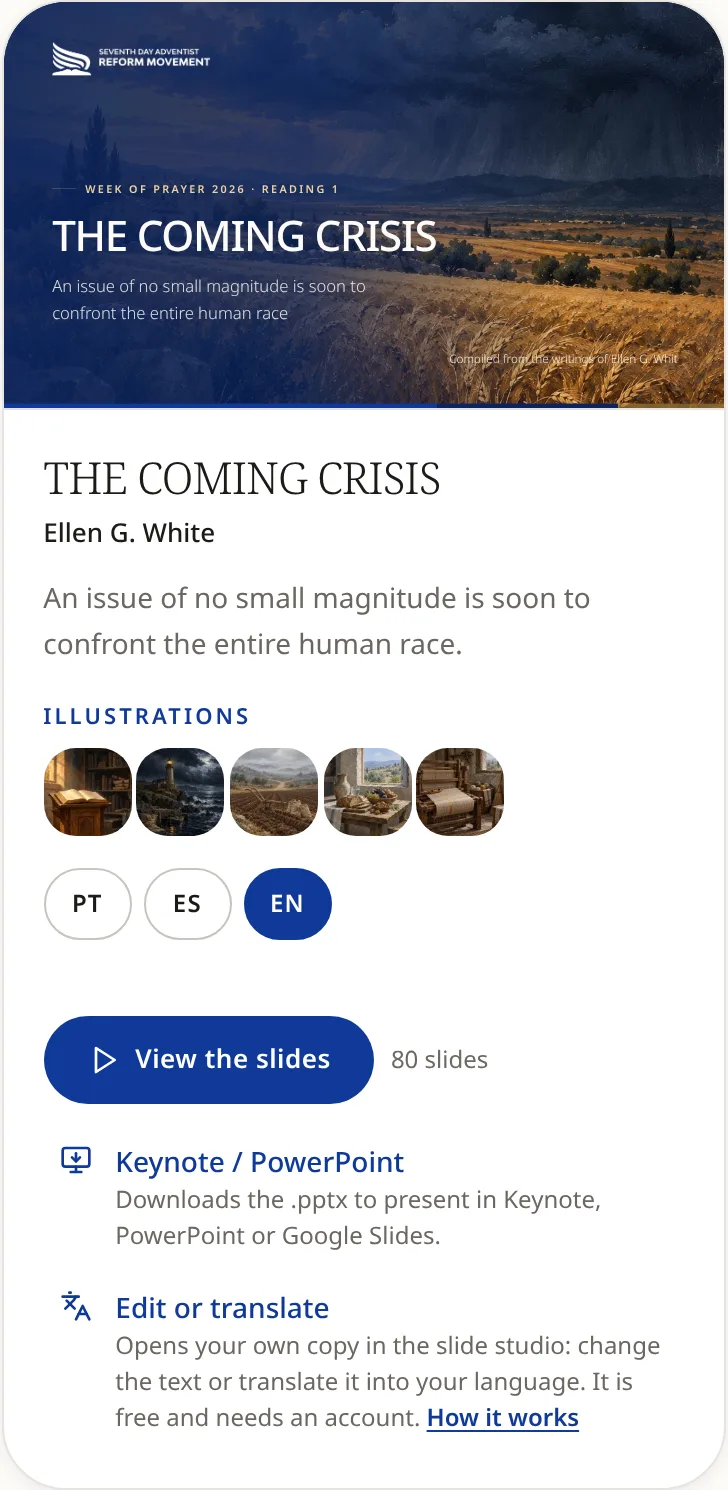
Each talk's card, on the project page.A Week of Prayer talk card, with the View the slides, Keynote / PowerPoint and Edit or translate buttons — 100% - Step 3
Adapt the text
Click the slide and edit the fields beside it: title, text, verse, speaker notes.- Change the church name, date and time wherever they appear.
- Everything saves on its own, every few seconds.
- Layout, colours and fonts follow the brand: you change the content, not the design.
Text that is too long is never cut: it continues on the next slide.
When the copy opens, the studio shows where to start.The “This copy is yours” strip at the top of the studio, with what to do next — 100% - Step 4
Translate into your language
In the studio, tap “Translate”. The original stays on the left and the translation beside it, with a preview of the slide in the new language.- Tap “Add translation” and choose the language.
- Tap “AI draft” for a first draft — then review it sentence by sentence.
- The AI does NOT translate Bible verses or Ellen G. White quotations: paste the text from the Bible and the official edition in your language.
- When you are done, tap “Create presentation in…”. It appears as a new presentation, ready to present.
Changed something in the original later? Go back to “Translate” and tap “Update presentation in…”.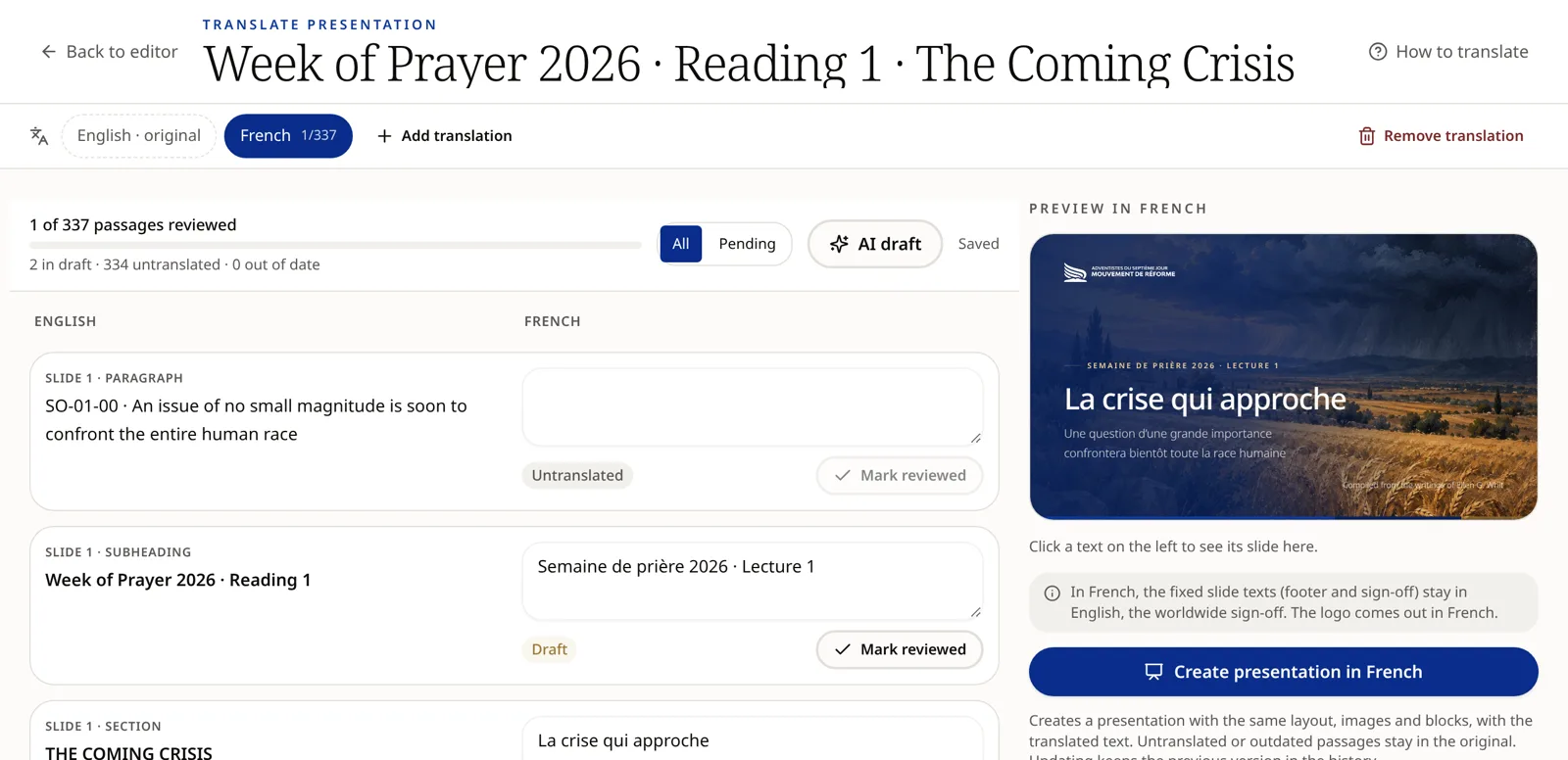
Translate: the original on the left, the translation beside it, the slide preview on the right.The translation screen: English on the left, French beside it, and the slide preview in French — 100% - Step 5
Send it to the team to publish
Finished and reviewed everything? Send the translation to the team: once reviewed, it goes onto the site, on the project page, for every church in your language to use.- On the “Translate” screen, below the preview, tap “Send to the team”. The button unlocks once every text is reviewed — until then, it says how many are left.
- If you like, write a message to the team: for example, which Bible you used for the verses.
- You get a receipt by e-mail, and the screen shows the status: waiting for review, in review, published.
- Published: the e-mail has the link to the page in your language. If the team asks for changes, the e-mail says which — fix them and tap “Send again”.
Sending is optional. Your copy stays yours, and you can present without sending it. - Step 6
Present, download or share
With the presentation ready, use the studio menu.Open the slide studio- Present: full screen, with the speaker notes on a second screen.
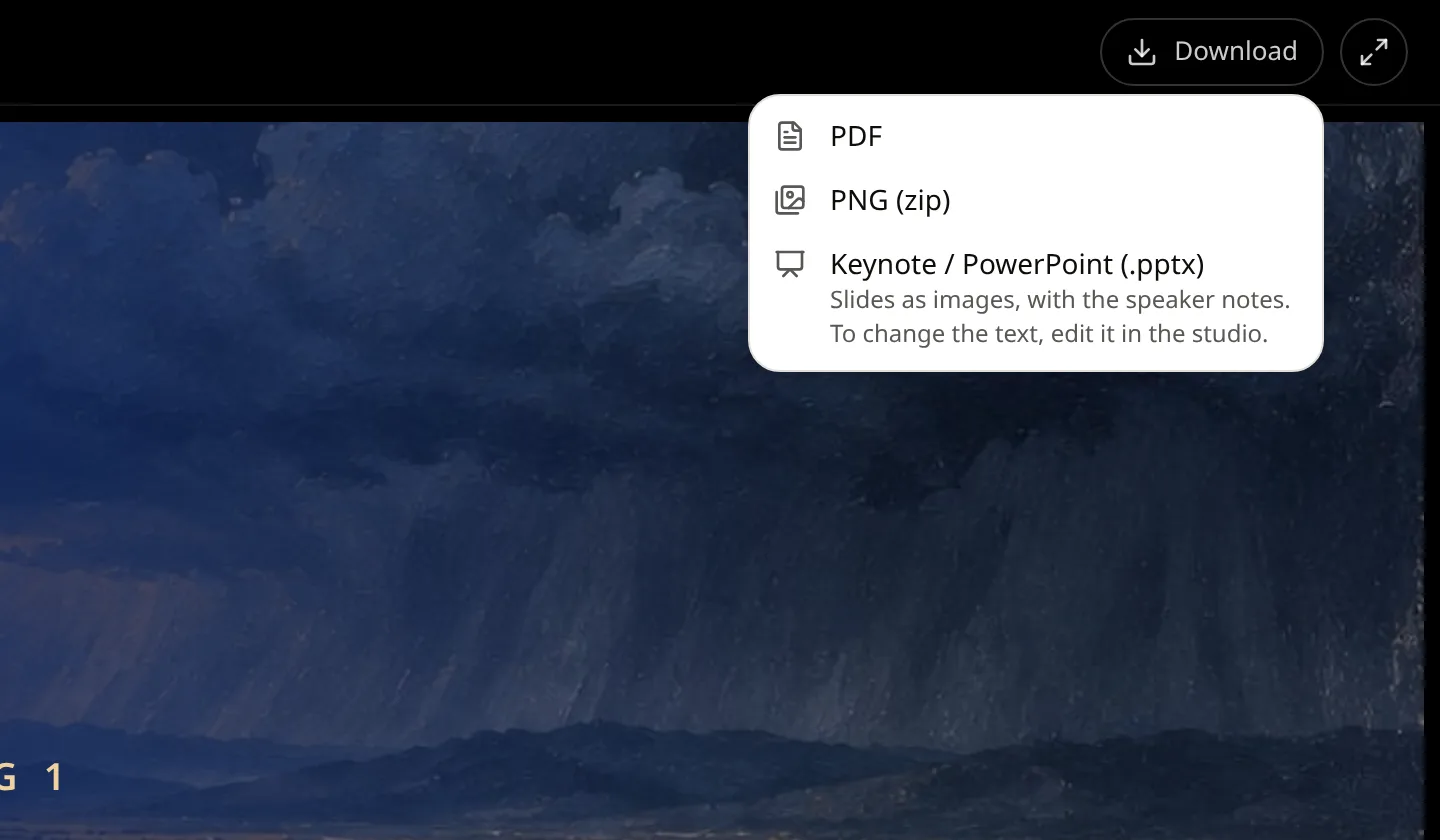
- Download: PDF, Keynote / PowerPoint (.pptx) or a package that works offline.
- Share: a link for whoever will present at another church.
Translation languages
The studio translates between these languages, and the logo and the fixed slide texts (the sign-off and the footer) come out in your language. In French, Italian, Romanian, Russian and Ukrainian, those fixed texts and the department names are a provisional translation, awaiting review; the project seal stays in English.
- ptPortuguês
- esEspañol
- enEnglish
- frFrançais
- itItaliano
- roRomână
- ruРусский
- ukУкраїнська
Need another language? Contact us — we will note the request.
Keynote and PowerPoint
Presenting in Keynote
The .pptx file opens in Keynote (Mac, iPad), PowerPoint and Google Slides — and the text can be edited there: every sentence comes in a text box, in the same place on the slide.
- 1On the talk card, tap “Keynote / PowerPoint” — or, in the studio, Export › PowerPoint (editable).
- 2Open the file in Keynote: File › Open (or tap the file on the iPad).
- 3See the speaker notes under View › Show Presenter Notes.
For the lettering to match the studio, install the free Noto Serif and Noto Sans fonts (fonts.google.com). Without them, Keynote and PowerPoint use another font, and a line may break in a different place. Only projecting? Download the PowerPoint (image): every slide is identical to the screen, but the text can't be edited.
Frequently asked questions
Do I have to pay?
No. The account and the slide studio are free.
How does my translation get onto the site?
With the “Send to the team” button, on the translation screen. The team reviews the slides and publishes them on the project page, in your language. Until then, the translation stays in your account only, and you are told by e-mail at each step.
If I change my copy, does the original change?
No. The published original stays the same for every church. You only change your copy.
Where is my presentation kept?
In the slide studio, under “My presentations”. It is saved in your account, and you can come back to it from any computer.
Does the AI translate the Bible verses?
No. Verses and Ellen G. White quotations come from the edition published in your language, and the studio asks you to paste the official text. The rest, the AI drafts and you review.
Can I edit the text in Keynote or PowerPoint?
Yes, in the “PowerPoint (editable)”: every text comes in a text box, with the photos and shapes behind it. Install the free Noto Serif and Noto Sans fonts so the lettering matches. The “PowerPoint (image)” is identical to the screen, but the text can't be edited.
I hold an office in my church. Does anything change?
Whoever handles communication for the unit opens the copy already signed by the unit. Everyone else opens a personal copy, with the institutional logo.